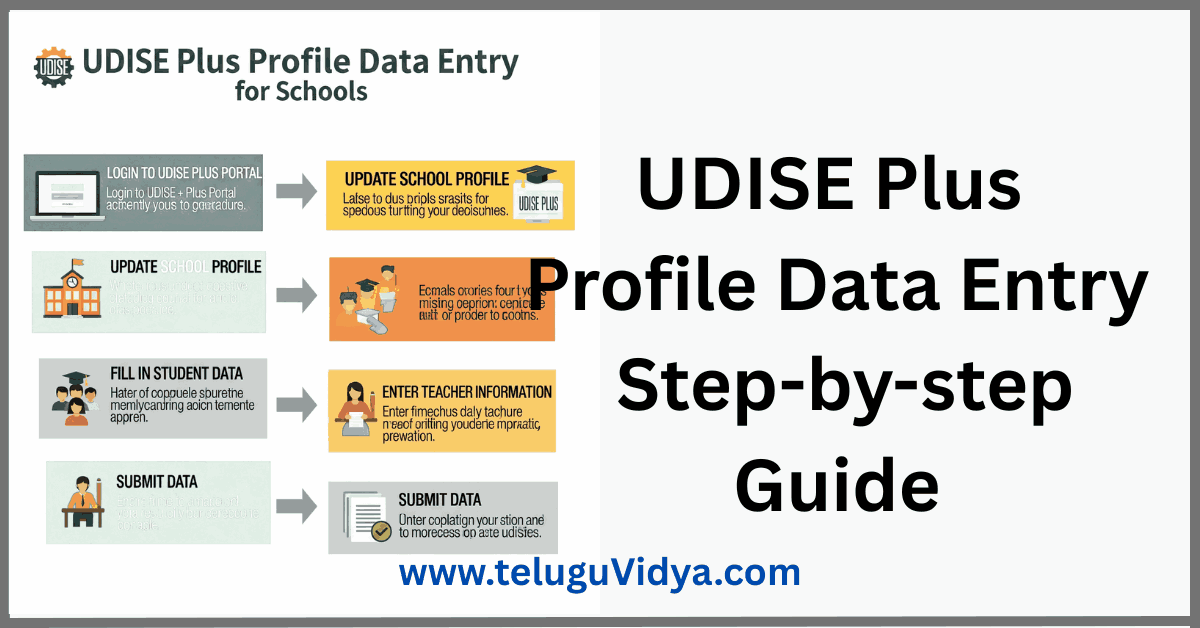
UDISE Plus profile data entry is a critical annual task for every school in AP & Telangana. This comprehensive 2025–26 walkthrough explains how to log in, fill out the Data Capture Format (DCF), update infrastructure, avoid common errors, and complete the final submission and printout confidently.
UDISE Plus profile data entry captures your school’s identity, management, infrastructure, safety, and digital status in one place. Accurate, timely entries power planning, funding, and policy at district, state, and national levels – so getting it right matters. The Profile & Facility Module serves as the centralized repository for these details for the academic year.
From logging in and navigating the dashboard to completing Section 1 (School Profile) and Section 2 (Facilities & ICT), this guide keeps you aligned with the official module flow and field-level expectations. You’ll also find a checklist of best practices, common mistakes to avoid, and a smooth path to the final submission and printout.
UDISE Plus school login and dashboard
Go to the official portal and sign in with your UDISE code and password. After successful login, open the Profile & Facility module from the dashboard to begin your UDISE Plus profile data entry. The official user manual lists the usual path as: open URL → enter credentials → click Login → Dashboard → Profile & Facility.
Understanding the Data Capture Format (DCF)
The DCF groups fields logically so respondents can complete each block and progress. You’ll see clickable links (for example, 1.1 to 1.30 in Section 1A) to open pages with pre-filled and editable fields. Save frequently and use “Save & Next” to move ahead without losing work.
Section 1: School Profile (1A, 1B, 1C)
1A — Basic School Profile
Verify pre-filled fields such as School Name (CAPS), District, UDISE+ Block, Address, CRC, Constituencies, Category, Classes/Streams, Management and Sub-management, school type, affiliation boards, medium(s) of instruction (largest first), languages taught (max 3), curriculum, minority status, vocational courses, respondent details, and academic session dates. Click “Next” when done.
School Other Details
Fill residential/shift status, pre-vocational/skill training offerings, approachability by all-weather roads, instructional days in the previous academic year, and CCE implementation. Use “Save & Next” to lock changes.
Anganwadi, SMC/SMDC & Others
Provide details of co-located Anganwadi/Balavatika, out-of-school enrolments, remedial/enhancement classes, school visits, SMC/SDMC constitution and meetings, School Building Committee, Academic Committee, PFMS registration, PTA, multi-class units, school complex participation, EBSB activities, Fit India certification, Holistic Report Card, and PM-POSHAN days (including Pre-Primary if extended).
Availability of free textbooks & TLM
For each stage (Pre-primary, Primary, Upper-primary, Secondary, Higher Secondary), indicate free textbook receipt and month (e.g., 05-May), TLM availability, graded supplementary material and use, play/sports material, and uniform distribution month.
Key Performance Indicators (KPI)
Enter counts for LO-based assessment items, participation in academic enrichment (projects, virtual labs, debates, etc.), and the number of students oriented on cyber safety and trained on psycho-social aspects. :contentReference[oaicite:8]{index=8}
1B — School Safety & Other Parameters
Update SDMP status, structural/non-structural safety audits, CCTV and fire extinguishers, nodal teacher for safety, safety training and curriculum inclusion, display of safety guidelines and teacher photos, Vidya Parvesh adoption, attendance capture mode for students/teachers, Youth Club, teacher ID cards, and SSSA self-certification.
1C — Receipts & Expenditure
Provide grants received and expenditure (Govt/Govt-aided), financial assistance, inventory register maintenance, and annual expenditure heads for the previous year.
Section 2: Physical facilities & digital initiatives
Classrooms & other rooms
Record building status/type, classroom count and condition, boundary wall type, electricity/solar availability, room inventory other than classrooms, and mark available rooms (labs, HM room, office, etc.).
Toilets, water, library & health
Capture toilets/urinals (functional counts), hand-washing facilities, drinking water source and quality test, water purifier/RO, rainwater harvesting, library/reading corner, librarian availability, subscriptions, borrowing frequency, land area and expansion scope, classrooms/rooms required, playground, student health checkups, deworming/IFA, annual health records, thermal scanner, first aid and medicines, ramp, special educator, kitchen garden/shed, dustbins, and student furniture.
Facilities & equipment, boarding, labs
Tick facilities present, boarding/hostel availability by stage, labs for Higher Secondary (where applicable), and critical equipment inventories.
ICT & digital initiatives
Update ICT lab availability (including Samagra Shiksha), internet access and type, pedagogical use of internet, digital library, and e-books/e-content counts; then Save or return to Dashboard.
UDISE Plus profile data entry for teachers
Coordinate with the Head of School and office staff to cross-verify staff counts, subjects, attendance mode, and enrichment activities. Keep staff lists, appointment orders, and timetable snapshots at hand while you complete UDISE Plus profile data entry so that designations, training, and workload data are consistent across sections.
If multiple respondents contribute, assign one “Respondent” to control the DCF and ensure standardized responses—this avoids conflicting edits and supports a smooth final submission.
Best practices & common mistakes
Best practices for accurate data
- Work section-wise: complete 1A → 1B → 1C, then Section 2, saving after each page.
- Keep documentary proof handy (recognition orders, affiliation, safety audit reports, PM-POSHAN registers, library logs, RO water test reports).
- For UDISE Plus profile data entry on languages/mediums, list mediums in descending order by student strength; cap languages taught to three.
- Use the exact month format where specified (e.g., 05-May for textbooks/uniforms).
- Cross-verify financials in 1C with accounts ledgers before submission.
Common mistakes to avoid
- Skipping “Save” before “Next,” which may lose unsaved edits—always save frequently.
- Mixing classroom counts with “other rooms”—labs and offices belong under other rooms, not classroom totals.
- Leaving safety audit, CCTV, fire extinguishers, or Youth Club fields blank—these directly affect compliance indicators.
- Forgetting e-content counts in the ICT/digital library fields.
Final submission, download & certification
Once all required forms are complete, the module enables a detailed school report download. Use this as your official record and for institutional certification or forwarding. Be sure to log out after finishing to protect your credentials.
UDISE Plus Profile data Entry Step-by-Step Guide Download (Pdf)
FAQs
How to access the UDISE Plus profile module?
Log in to the official portal using your UDISE code and password, then open the Profile & Facility module from the dashboard to start UDISE Plus profile data entry.
Where can I find the DCF for 2025–26?
The DCF is built into the Profile & Facility module via section links; follow the 1A/1B/1C and Section 2 structure in sequence.
Can I print my filled profile?
Yes. After completing all required forms, the download/print option becomes available for your school’s detailed report card.
Official links
- UDISE Plus Login: steps, reset, and safety
- Update infrastructure details in UDISE Plus
- UDISE Plus final submission & printout
Tip: Add one relevant image per major section with the alt text “UDISE Plus profile data entry” to reinforce the focus keyword and improve accessibility.